Profiles
This feature allows you to have multiple profiles in the same app, each profile has a separate database and settings.
❓ Where is it?
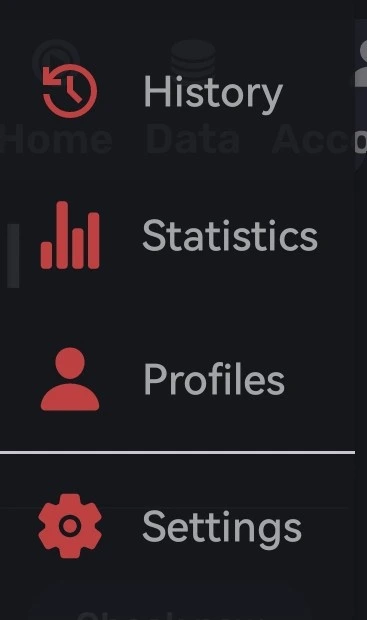
You can access this feature by going to the hamburger menu,
and then choose the Profiles option.
Depends on your app's language, the word Profiles can be different.
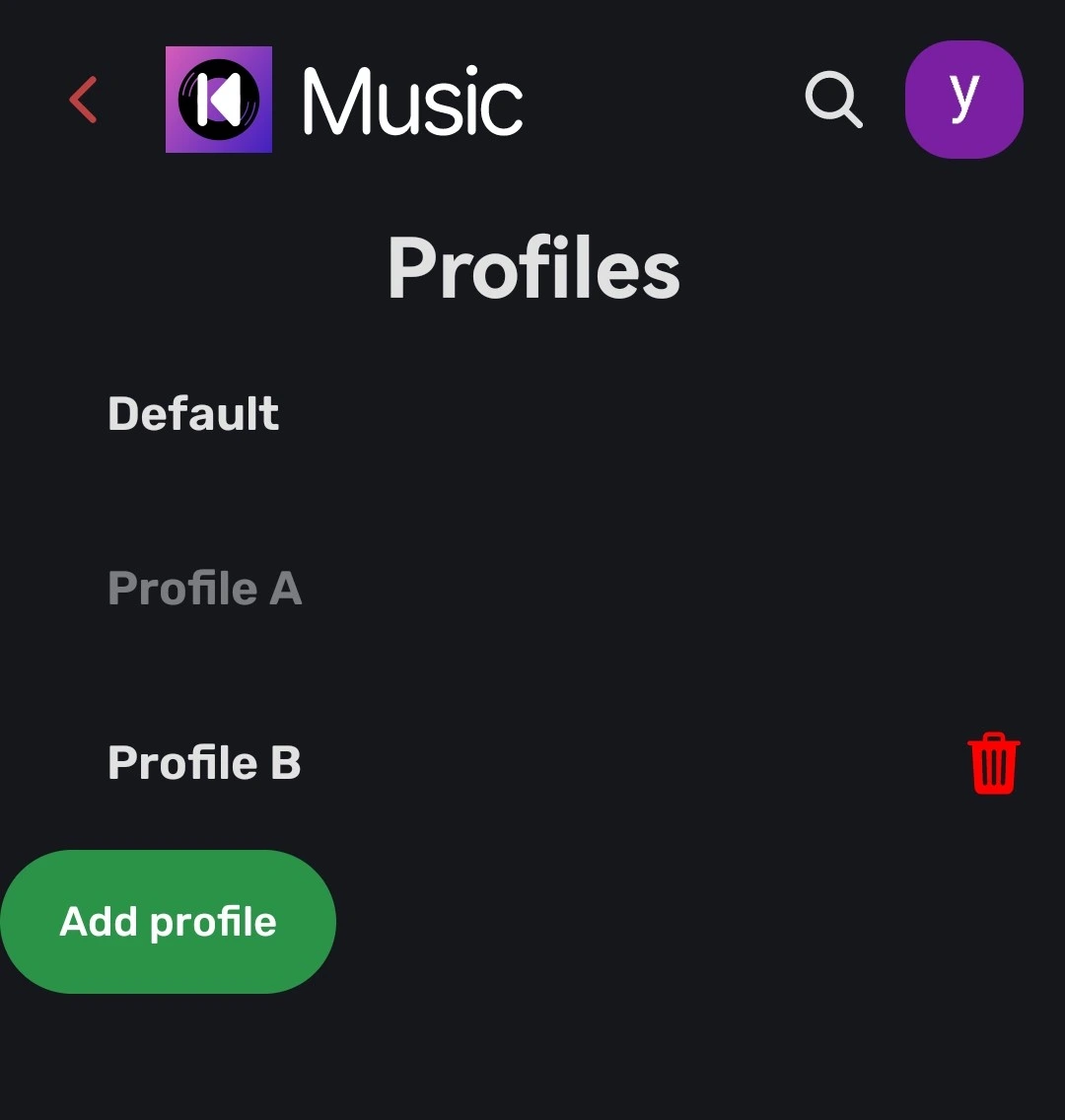
📱Profiles screen
This screen lets you access your profiles and create new ones.
Switching profile
Just click on the profile you want to switch to.
Restart is required to apply changes
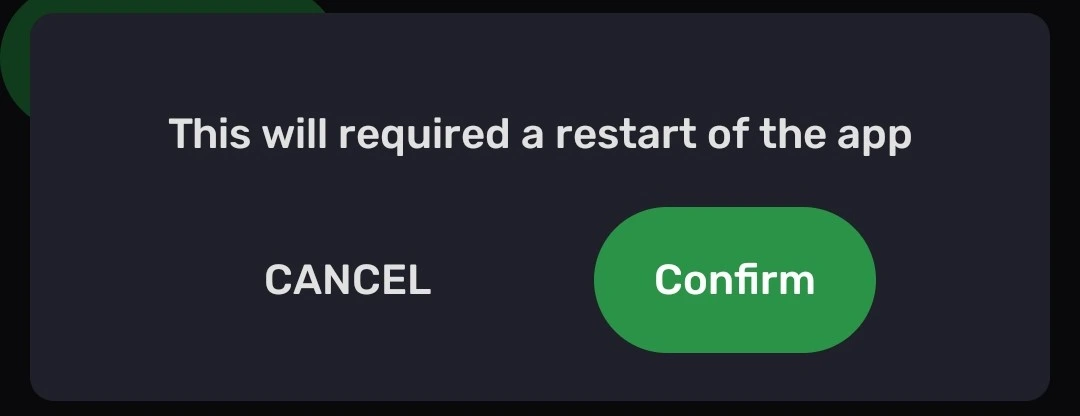
Cancel or pressing outside the dialog will close the dialog without doing anything else.
Confirm will close the app and switch the profile, open the app back again and start using the new profile .
Add profile
This button let you add a new profile, it will open a popup letting you choose a name.
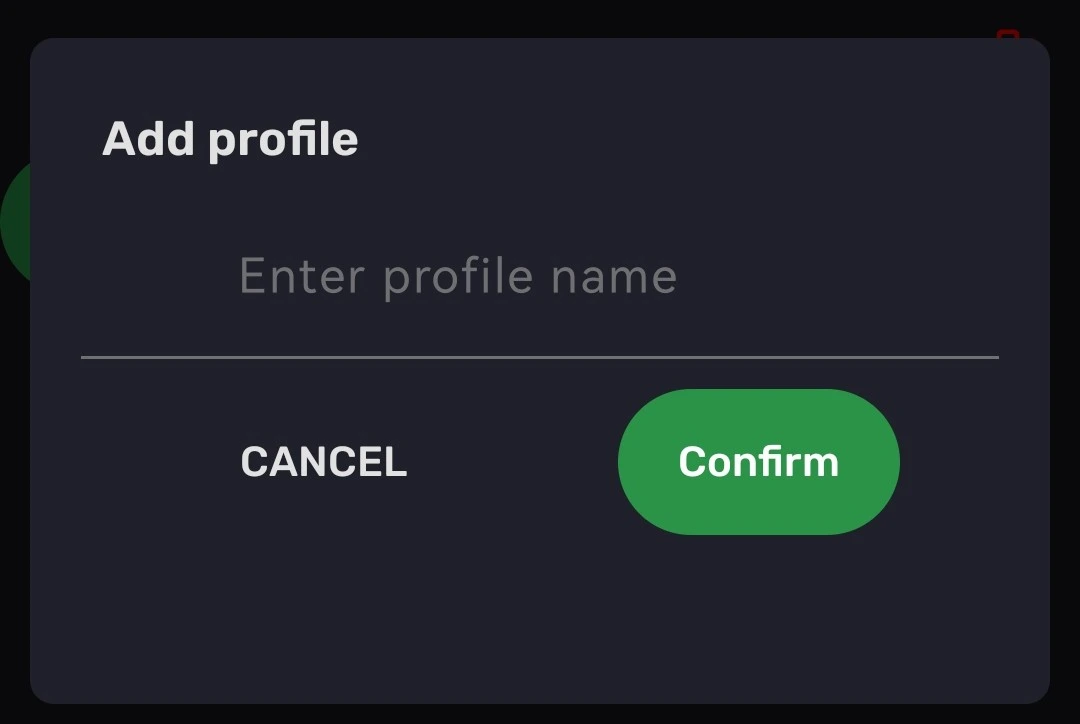
Enter the name for your new profile.
Cancel or pressing outside the dialog will close the dialog without doing else.
Confirm will create a new profile with the name prompted.
- If a name wasn't provided - the input for name will turn red,
- If the profile already exist - a new popup will open telling you that profile already exist.
This will not switch profile, to switch profile see Switching Profile.